Looking for a Microsoft Teams setup checklist? Start by mapping your Teams (by department or role), add members, create focused channels, pin key tools with Tabs, and schedule quick training so everyone works the same way—simple steps that help offices around Panama City get value fast.
Why Teams Took Off—and Why Setup Matters
Microsoft Teams brings chat, video meetings, calls, files, and task tools together in one place. Usage surged during the pandemic. User counts jumped from 20 million in November 2019 to 75 million in April 2020. As of this year, Microsoft reports about 270 million people using the platform, making it a leading business hub for team communications.
With so many capabilities, it’s easy to end up with a cluttered workspace if you don’t plan the structure and train your people. A little setup work now saves a lot of confusion later.
What Teams can handle for your business:
- Separate chat spaces for different groups
- Security features to protect team conversations
- Works smoothly with Office apps
- Connects with many third-party tools
- File sharing and collaboration
- Video and audio conferencing
- Optional add-on for an internet-based office phone system
- One place to keep team resources together
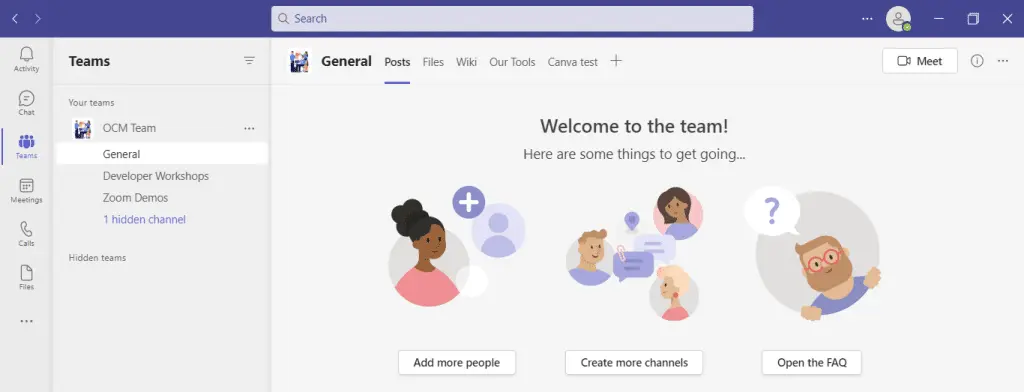
Ways You Can Use Teams
Small businesses can sign up for a standalone version of Teams here: Microsoft Teams. If you use Microsoft 365 business plans, Teams is included there with some added features.
Microsoft has also promoted Teams for personal use, so you can coordinate at work and handle family or community projects in the same familiar app.
Microsoft Teams Setup Checklist
1. Plan your Teams (by department or role)
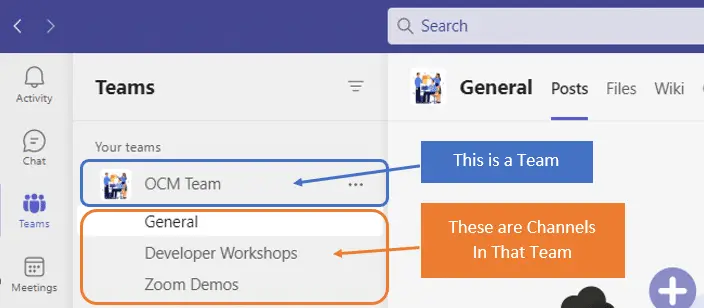
Decide who needs their own space before anyone starts creating Teams. A simple approach is to mirror your org chart.
- Create Teams by department (accounting, marketing, etc.)
- Add one company-wide Team for announcements and cross-team work
- Consider role-based Teams (office managers, leadership, etc.)
Each Team is private to its members, so only invited people can see its conversations and files.
2. Add the right people
For each Team, add the staff who should see and participate in that group’s work. Keep membership tight to avoid noise and confusion.
3. Create focused channels
Channels sit under each Team and keep conversations organized by topic or workflow. This makes it easier to find what you need later.
Example channels for a Marketing Team:
- Website Management
- Social Media
- Offline Advertising
Control who can create channels so you don’t end up with duplicates or messy sprawl.
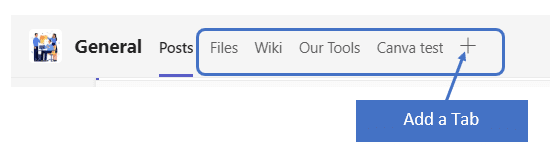
4. Pin key tools with Tabs
Use Tabs at the top of a channel to pin websites, files, dashboards, or apps your team uses often. For example, your accounting group could add a tax portal or key spreadsheet so no one has to hunt for links or logins.
5. Schedule short, practical training
Rollouts fail when people aren’t shown how to work in the new system. Plan brief sessions that cover everyday tasks, share best practices, and answer questions. Give folks time to adjust and survey them after to see where more help is needed. A Microsoft professional can shorten the learning curve and help you set smart defaults.
Need Help Getting Teams Running Smoothly?
If you want a clean, well-organized Teams rollout for your office in Bay County, we can help you bypass common snags and standardize how your staff works in the app—get in touch.
This Article has been Republished with Permission from The Technology Press.