To protect online accounts, turn on two-step login, store passwords in a password manager, review security settings, enable leaked password alerts in your browser, avoid logging in over public Wi‑Fi, and keep your computers and devices locked down.
Why stolen logins are a big problem for businesses
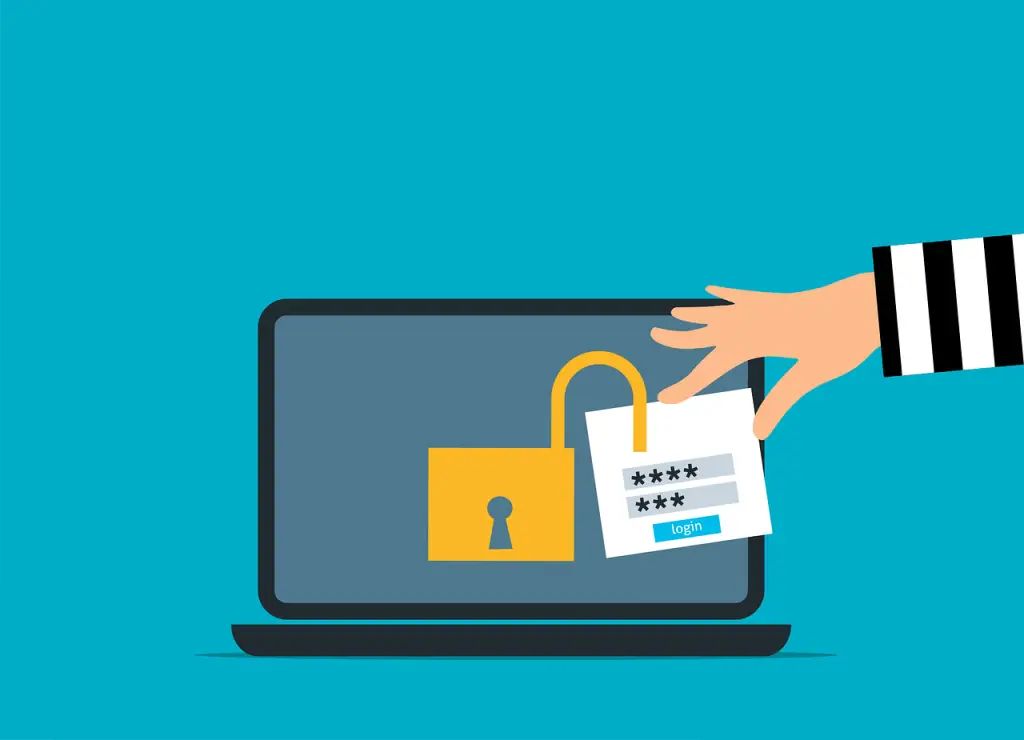
Login details are bought and sold on the Dark Web every day. Even social profiles have a going rate — hacked accounts often sell for $30 to $80 each. As companies rely more on cloud tools, criminals have more targets, and broken logins have become the top reason for data breaches worldwide, according to IBM Security’s latest Cost of a Data Breach Report.
When a personal or business cloud account is taken over, the fallout can be expensive. It can open the door to ransomware, violations of compliance rules, identity theft, and more.
On top of that, everyday password habits often make things worse. For example:
- 34% of people say they share passwords with coworkers
- 44% reuse the same password for work and personal accounts
- 49% keep passwords in plain text notes or documents
The risk is real. Here’s how to lower it for your team, whether you’re in one office around Panama City or working across locations.
Turn on two-step login (multi-factor authentication)
Adding a second check at sign-in is one of the most effective moves you can make. A study cited by Microsoft found it can stop about 99.9% of fake sign-in attempts.
Here’s how it works: after you enter your password, you confirm a code or prompt on your phone or another device. Attackers may guess or steal a password, but they usually don’t have your phone. That extra step is a small hassle that pays off in big protection.
Use a password manager instead of notes or spreadsheets
Criminals love it when passwords are stored in unprotected files or contact cards. A password manager fixes that. It keeps every login in an encrypted vault, and you only remember one strong master password to open it.
Good managers also autofill in most browsers and sync across your computers and devices, so you can sign in quickly without exposing passwords.
Review security and privacy settings in your cloud apps
Misconfigured settings are a common reason cloud accounts get exposed. Don’t leave defaults as-is and hope for the best. Go through each app’s security options and adjust them to match your needs. This can include sign-in alerts, session timeouts, sharing rules, and access controls.
Enable leaked password alerts in your browser
Even if you do everything right, a site you use can be breached and your password can leak without your knowledge. When that happens, stolen credentials often show up for sale on the Dark Web.
Modern browsers like Chrome and Edge can check saved passwords against known leaks. If they spot a match, you’ll see an alert the next time you try to sign in.
Look in your browser’s password area to make sure this alerting is turned on. If you get a warning, change that password right away.
Skip passwords on public Wi‑Fi
Assume public hotspots are being watched. Attackers often sit on airport, café, and restaurant Wi‑Fi to intercept sensitive data like passwords and card numbers.
Don’t sign in to accounts or enter payment details on public Wi‑Fi. Use your phone’s cellular connection or a trusted VPN app to encrypt your traffic.
Lock down your computers and devices
If malware slips onto a device, an attacker may hijack accounts you’re already signed into — no password needed. Reduce that risk with these basics:
- Antivirus and anti‑malware protections
- Keep operating systems and software up to date
- Phishing protection, such as email filtering and DNS filtering
Frequently asked questions
What is two-step login and where do I turn it on?
Two-step login (also called multi-factor authentication) adds a code or prompt after your password. You’ll find it in the security settings of most cloud services under names like Two-Step Verification or MFA.
What should I do if I think a password was exposed?
Change the password immediately, sign out of all active sessions, and turn on two-step login. Then check recent activity and update any reused passwords in other accounts.
Do password managers really help non-technical teams?
Yes. They remove the need to memorize or write down passwords and make it easy to use unique, strong passwords everywhere.
Need help with passwords and cloud accounts?
Don’t leave your business at risk. We can review your current setup and recommend practical steps that fit how your team works.
If you’d like a hand putting this in place for your office in Bay County, get in touch. We’re here to help.