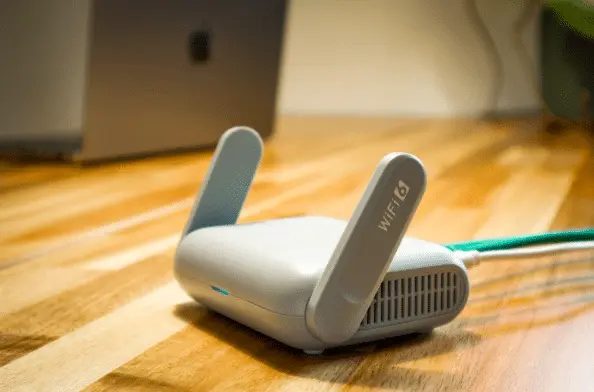
Guest Wi-Fi for your business should do one job: give visitors internet access while keeping their phones and laptops away from your own computers, printers, cameras and files. A different network name and password don't guarantee that. The real separation happens in your router, firewall and wireless access points, and it's worth checking that it's actually set up.
Most offices offer Wi-Fi to customers, vendors and contractors. It's a nice courtesy. The problem starts when those visitors land on the same network your business runs on.
You might trust the person, but you don't control their device. You have no idea whether it's up to date, whether it's carrying malware, or who has borrowed it. A well-built guest network lets them get online without letting their device talk to anything of yours.
What a separate guest network actually means
On guest Wi-Fi, a visitor should be able to browse the web, check email and use online apps. That's it. They should not be able to reach anything inside your office.

"Anything inside your office" covers more than people expect:
- Your work computers and any servers
- Printers on the network
- Shared drives, file storage and backup boxes
- Security cameras
- Door and building access systems
- The settings pages for your router and network gear
- Other people's devices on the guest network
The Australian Cyber Security Centre advises keeping an organization's internal network apart from the guest Wi-Fi that unmanaged devices use.
You don't need two internet connections for this. Both networks can share one. The walls between them live in your network gear, meaning the router, firewall, switches or Wi-Fi access points.
The risk of one shared network
Being on the same network doesn't hand a visitor your files. Passwords, device security and user permissions still apply.
What it does do is let their device see and try to contact things it has no reason to touch, like a printer, a shared folder, a storage box, a camera, or a poorly protected settings page. And if their device is infected, it may go looking for other devices to spread to. When the network is split into separate sections, those attempts are blocked before they reach your equipment.
Britain's National Cyber Security Centre makes the same point: dividing a network into sections makes it harder to hop from one system to the next. When a single device gets infected, far fewer others are within its reach.
In short, separation cuts risk by blocking access that visitors never needed in the first place.
Why a second Wi-Fi name may not be enough
When someone opens the Wi-Fi list on their phone, they might see "YourBusiness" and "YourBusiness-Guest." Those network names are called SSIDs. Having two of them doesn't prove the traffic behind them is kept apart. The equipment also has to put guests on their own network and block them from your internal systems.
Business-grade gear usually does this with a separate virtual network for guest traffic (often called a VLAN), plus firewall rules that stop that traffic from reaching private addresses. Some small-business routers handle this for you when you turn on guest mode.
Cisco designs it the same way. Its branch-office guide puts guests on their own network name and VLAN, and lets them reach the internet only, and its Meraki small-office blueprint adds firewall rules blocking guests from anything local.
The exact wording depends on your equipment. In the settings, look for things like:
- Guest network
- Network isolation
- Deny local network access
- Client isolation
- VLAN
- Guest firewall rules
Only see an extra network name and a password? Have your IT provider test what a guest device can actually get to.
Should guests be able to see each other's devices?
Usually, no. Guest devices should be blocked from talking to one another too. Depending on the brand, this is called client isolation, wireless isolation, peer-to-peer blocking or Layer 2 isolation.
Without it, one visitor's laptop may be able to reach another visitor's phone. Turning it on protects everyone using your Wi-Fi.
They're separate settings, and most business guest networks should have both turned on:
- Client isolation keeps guests away from each other.
- Network separation keeps guests away from your business systems.
Where should employees' personal phones and laptops connect?
If an employee's own phone just needs to get online, the guest network is usually the right home for it. The same goes for a personal laptop that never needs to reach your internal systems.
If staff use their own devices to open company files, apps or internal systems, you'll want written rules for personal devices at work. Those phones and laptops may need security software, management tools, encryption and their own access rules. A personal device shouldn't get full network access unless the job truly requires it.
A simple rule of thumb: company-owned, managed devices can use the business network when they need internal resources. Personal and unmanaged devices go on a restricted network unless there's a business reason to give them more.
Smart TVs, cameras and other gadgets
Smart TVs, speakers, cameras, thermostats and lobby displays often need the internet but have no reason to talk to your computers. They can live on their own separate network for connected devices.
Some small businesses simply put them on the guest network. That can break things if a device needs to reach a controller, a phone app or a local recorder, so the right setup depends on how each device works. Either way, a smart TV or camera shouldn't be able to reach your work computers just because it plugs into the same router.
The U.S. Cybersecurity and Infrastructure Security Agency (CISA) suggests giving guests, smart gadgets, personal computers and work computers each their own network.
A five-step check for your guest Wi-Fi
- Check who is on which network. Work computers and other managed equipment belong on the business network. Visitors and unmanaged devices belong on the guest network.
- Confirm guests can't reach local devices. From the guest network, a device shouldn't be able to reach printers, file storage, cameras, servers or network settings pages.
- Make sure guests are isolated from each other. Turn on client isolation, or whatever your equipment calls it.
- Use strong Wi-Fi encryption. Australia's cyber security agency advises WPA3 where you can, WPA3 transition mode if some older devices can't keep up, and WPA2 only when WPA3 isn't offered. Give the guest network a different password from your business Wi-Fi.
- Maintain your network gear. Keep the router and access points on current firmware, turn on automatic updates where you can, change the default admin login, and replace any equipment that no longer gets security updates.
Repeat the check whenever any of that equipment is swapped out or its settings change.
Do you need a second internet connection?
For most small businesses, no. A decent business router or firewall can run both networks on one connection and keep them apart. You can also cap the guest network's speed so visitors don't eat up all your bandwidth.
Cheap or aging routers sometimes can't keep the two networks properly apart. Some offer a "guest Wi-Fi" button but give you little control over what guests can reach. Check the manufacturer's documentation, or have your IT provider test it.
Give guests their own password
Never share your business Wi-Fi password with visitors. Once it's out, it's hard to control who reconnects later, and changing it means updating every company device.
A separate guest password can be changed any time without knocking your own equipment offline. Rotate it after a busy event, when it has been shared too widely, or once a contractor wraps up.
Remember that the password only controls who can join the guest network. It doesn't replace keeping that network separate.
Frequently asked questions
Is a guest Wi-Fi password enough to protect my business network?
No. The password decides who can join the guest Wi-Fi. Your equipment still has to block guest devices from reaching your business network.
Can guests and employees share the same internet connection?
Yes. One connection can feed both networks while your equipment keeps them apart.
Should employees put their personal phones on guest Wi-Fi?
If the phone only needs the internet, the guest network is usually the safer choice. Devices that need company systems should follow your device and access policies.
Can visitors use our network printer?
Normally guests should be blocked from printers. If visitors truly need to print, ask your IT provider for a locked-down way to allow it without opening the rest of your network.
Does guest Wi-Fi stop cyberattacks?
No. It cuts down unnecessary access and limits how far an infected device can reach. You still need strong passwords, two-step login, software updates, security software on your computers, backups and sensible access controls.
Sources and further reading
- Secure Your Wi-Fi and Router: Australian Cyber Security Centre
- Risk Management of Enterprise Mobility: Australian Cyber Security Centre
- How to Implement Zero Trust Network Access: UK National Cyber Security Centre
- Cisco Unified Branch Design Guide
- Cisco Meraki Small Office Reference Architecture
- Federal Mobile Workplace Security Guidance: CISA
Not sure your guest Wi-Fi is really walled off? Flux Labs checks and sets up office networks for businesses around Panama City and Bay County. Get in touch and we'll take a look.
—